Jawc tray icon
When launched, Jawc displays just a small icon in the tray area. You
should configure your PC to automatically run Jawc on startup.

Jawc Menu
Right clicking on the tray icon pops up Jawc's main menu. From
this menu you can access to every functionality available in Javc.
The popup menu is divided in two fixed parts that contain Jawc
commands and in a variable part which contains Jawc's plugins commands.
The variable part grows or shrinks according to the number of plugins
you install.
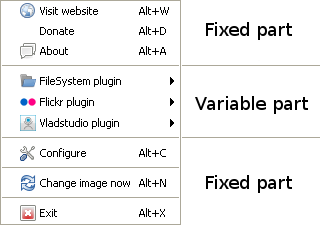
In this page I'll explain only the commands contained in the fixed
parts of the menu, as the variable part will be discussed in each
plugin's page.
Starting from the top:
Visit Website:
Opens the browser to these pages.
Donate:
Yessssss... if you like Jawc and you want, you can donate
even one single $ or €. It will help and encourage me to
enhance Jawc and develope new plugins.
About:
Displays Jawc's about dialog. It displays the version number and some
informations about the plugins you have installed.
Configure:
Opens Jawc's configuration
dialog. From this panel you will be able to set
and configure any available options.
Change image now:
executes the next plugin and immediatelly changes your desktop. This
function can be executed just by double-clicking on Jawc's icon.
Exit: Quits
Jawc
Jawc
Configuration dialog
Jawc configuration dialog contains three tabpages: Settings,
Plugins
and About.
This is the Settings
page:
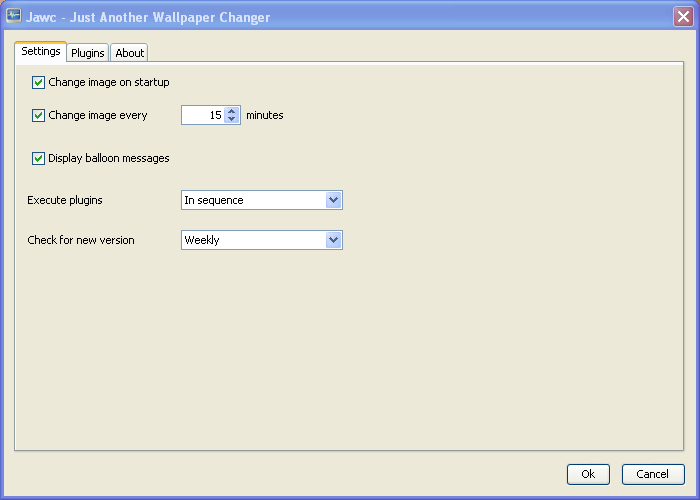
The options you have here are:
Change image on startup:
checking this options tells Jawc to change your desktop image as soon
as it starts.
Change image every x
minutes: checking this options tells Jawc to change your
desktop image with the interval you specify
Display balloon messages:
if checked, displays a Balloon
Message thats shows informations about the plugin that
changed the last image and about the image itself.
This is a sample of a Balloon
Message. 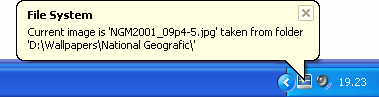
Execute plugins:
lets you decide how plugins should be executed. Available options are In sequence or Random.
Selecting In sequence
Jawc remembers the last executed plugin and executes the next one in
sequence. Selecting Random,
Jawc chooses randomly which plugin to execute next.
Check for new version: determines how often Jawc checks for new updates. Available options are: Never, Daily, Weekly and Monthly.
This is the Plugins
page:

This panel is divided in two parts: on the left side you can find a
list with every available plugin you have installed.
Selecting a plugin shows, in the right side, the configuration options
for the plugin itself.
Using the Enabled
checkbox on the top of the window, you can decide wether to enable or
not the selected plugin.
This is the About page:
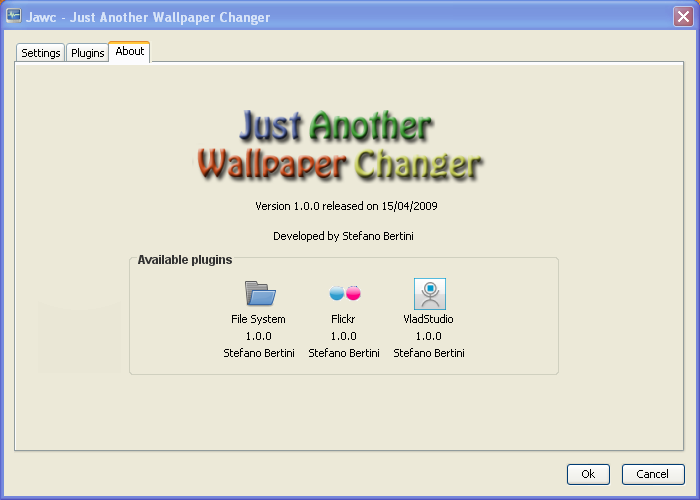
This page shows informations about your Jawc's version and about the
plugins you have installed.